Safer upgrades
An idempotent 2.3→2.4 upgrader supports dry runs, skips existing schema, and validates the result.
 EasyPlexVersion 2.4 handbook
Professional servicesServices↗
EasyPlexVersion 2.4 handbook
Professional servicesServices↗
Operator documentation · 2.4
The current guide for deploying the Laravel control panel, connecting the native Android app, securing the mobile API, and operating EasyPlex 2.4.
Release notes
This release is more than a visual update. Database, API security, playback, monetization, and admin workflows changed together.
An idempotent 2.3→2.4 upgrader supports dry runs, skips existing schema, and validates the result.
HMAC request signatures, nonce replay prevention, session binding, optional response encryption, certificate pins, and Play Integrity.
Stripe, PayPal, and admin-approved offline payments remain supported. RevenueCat and its public webhook have been removed.
Credit packages, transaction history, per-content prices, permanent or every-play unlock policies, and ad unlocks.
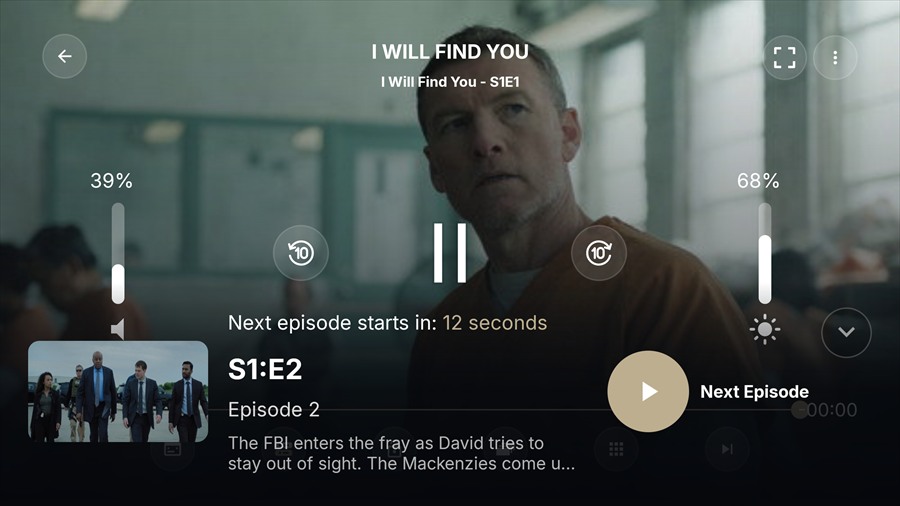
Profiles, profile-scoped watch history, reels and reactions, request management, PiP, auto-play next, RTL, offline states, Chromecast UI, and configurable episode cards.
Branding, home-rail order, app updates, SMTP, runtime values, FFmpeg, storage, VPN, country rules, API limits, and mobile secrets live in the admin settings workspace.
System map
/api/Android Source/EasyPlex2.4/WebPanel2.4/development/WebPanel2.4-development.ziphttps://your-domain.example/api/Before you begin
| Area | Required | Production notes |
|---|---|---|
| Backend | PHP 8.0.2+, Composer 2, MySQL/MariaDB, HTTPS | Laravel 9.52. Enable OpenSSL, PDO MySQL, cURL, Mbstring, JSON, Fileinfo, XML, GD/Imagick, ZIP and Sodium where available. |
| Web server | Apache with mod_rewrite or Nginx | Point the document root to Laravel’s public/ directory and deny direct access to .env, vendor/, and storage/. |
| Server capacity | 2 vCPU, 2 GB RAM, 5 GB free disk | This is a practical minimum for a small catalog without local video processing. Use 4 GB+ RAM and storage sized for artwork, backups, uploads, logs, and FFmpeg temporary/output files in production. |
| Runtime | Cron access and writable storage | Redis is strongly recommended for production cache and atomic nonce replay protection. Configure a continuously supervised queue worker for background jobs. |
| Vue build tools | Node.js 20.x and npm 10.x | Required only when editing and rebuilding the Vue admin assets. Run npm ci, then npm run prod. Buyers who use the supplied compiled assets do not need Node.js at runtime. |
| Android | Current Android Studio with JDK 17, Android SDK 36 | The project targets API 36, has minimum API 24, uses Gradle 9.4.1 and Android Gradle Plugin 9.2.1. App source compatibility remains Java 11. |
| Accounts | TMDB key | Firebase/OneSignal, payment, ad network, AWS/Wasabi/Cloudflare R2, and social OAuth accounts are only needed for the features you enable. |
Accounts · pricing · terms
EasyPlex supplies integration code, not third-party accounts, credentials, quotas, subscriptions, or usage fees. Configure only the services you need and check their current terms before launch.
| Service | What the buyer must provide | Costs, limits, and terms |
|---|---|---|
| Stripe | Merchant account plus API and webhook credentials | Processing, dispute, conversion, and other fees may apply. Country eligibility and Stripe terms apply. |
| PayPal | Business/developer account plus API and webhook credentials | Transaction, withdrawal, conversion, dispute, and other fees may apply. PayPal terms apply. |
| Firebase / FCM | Google/Firebase project and buyer-supplied app or service configuration | Free quotas and product limits apply; some Google Cloud usage may require billing. Google terms apply. |
| OneSignal | OneSignal account, application, and credentials | Plan limits, message allowances, and paid features vary. OneSignal terms apply. |
| TMDB API | TMDB account and API key; commercial use may require a separate written agreement with TMDB | Attribution, rate limits, branding, API usage, content terms, and any applicable commercial fees apply. EasyPlex is not endorsed by TMDB. |
| S3-compatible storage | AWS or compatible provider account, bucket, endpoint, and credentials | Storage, request, transfer/egress, CDN, and infrastructure charges may apply under the selected provider's terms. |
| Cloudflare R2 | Cloudflare account, R2 bucket, scoped S3 API credentials, account endpoint, and public delivery URL | Storage, operations, retrieval, custom-domain, quota, and service terms apply. The r2.dev URL is intended for development; use a custom domain for production delivery. |
| GeoIP provider | Provider account or licensed database and, where required, an API key | Lookup quotas, fees, privacy, retention, and regional-compliance rules depend on the selected provider. |
| Google Sign-In | Google Cloud/Firebase project, OAuth clients, consent screen, and signing fingerprints | Quotas, verification, branding, data-use, and Google platform terms apply. Connected Google services may have separate billing. |
| Facebook Login | Meta developer account and Facebook app, credentials, configuration, and any required review | Meta platform, privacy, branding, data-use, and regional-availability terms apply; connected services may impose separate limits or costs. |
| Advertising networks | Separate publisher accounts, app/placement IDs, consent setup, and policy compliance | Eligibility, revenue, quotas, SDK terms, and possible costs vary by network. |
| DRM / license server | Licensed media plus any required DRM vendor agreement and license-server service | DRM licensing, hosting, and media-delivery charges are not included. |
| Email / SMTP | Buyer-supplied SMTP or mail-provider account and credentials | Sending limits, domain verification, anti-spam rules, and usage charges depend on the provider. |
Server · new installation
Run commands from the backend project root. On shared hosting, use the host’s terminal or run the equivalent deployment steps locally before upload.
public/Deploy the backend files. Configure the domain document root as /path/to/LaravelEasyplex/public. If your host cannot change it, move only the contents of public/ to the web root and carefully update paths in index.php.
Copy .env.example to .env. Set APP_ENV=production, APP_DEBUG=false, the HTTPS APP_URL, and database credentials. Keep .env outside public access.
APP_NAME=EasyPlex
APP_ENV=production
APP_KEY=
APP_DEBUG=false
APP_URL=https://stream.example.com

DB_CONNECTION=mysql
DB_HOST=127.0.0.1
DB_PORT=3306
DB_DATABASE=easyplex
DB_USERNAME=easyplex_user
DB_PASSWORD=use-a-strong-password

CACHE_DRIVER=file
SESSION_DRIVER=file
QUEUE_CONNECTION=databaseThe release intentionally does not bundle Composer’s vendor/ directory. Install the locked production dependencies on the server after upload:
composer install --no-dev --optimize-autoloader
php artisan key:generate
php artisan migrate --force
php artisan db:seed --force
php artisan passport:keys
php artisan storage:link
php artisan optimize:clear
The bundled seed creates temporary administrator and user accounts. Their first-login credentials and mandatory security steps are shown in the clearly labeled Default credentials after seeding section immediately below.
The web-server user must be able to write to storage/ and bootstrap/cache/. Uploaded artwork and generated files also depend on the configured public storage disk.
* * * * * cd /path/to/LaravelEasyplex && php artisan schedule:run >> /dev/null 2>&1Also keep a supervised php artisan queue:work --tries=3 process running when using database/Redis queues. Copy the complete production configuration from the dedicated Supervisor and systemd queue-worker guide.
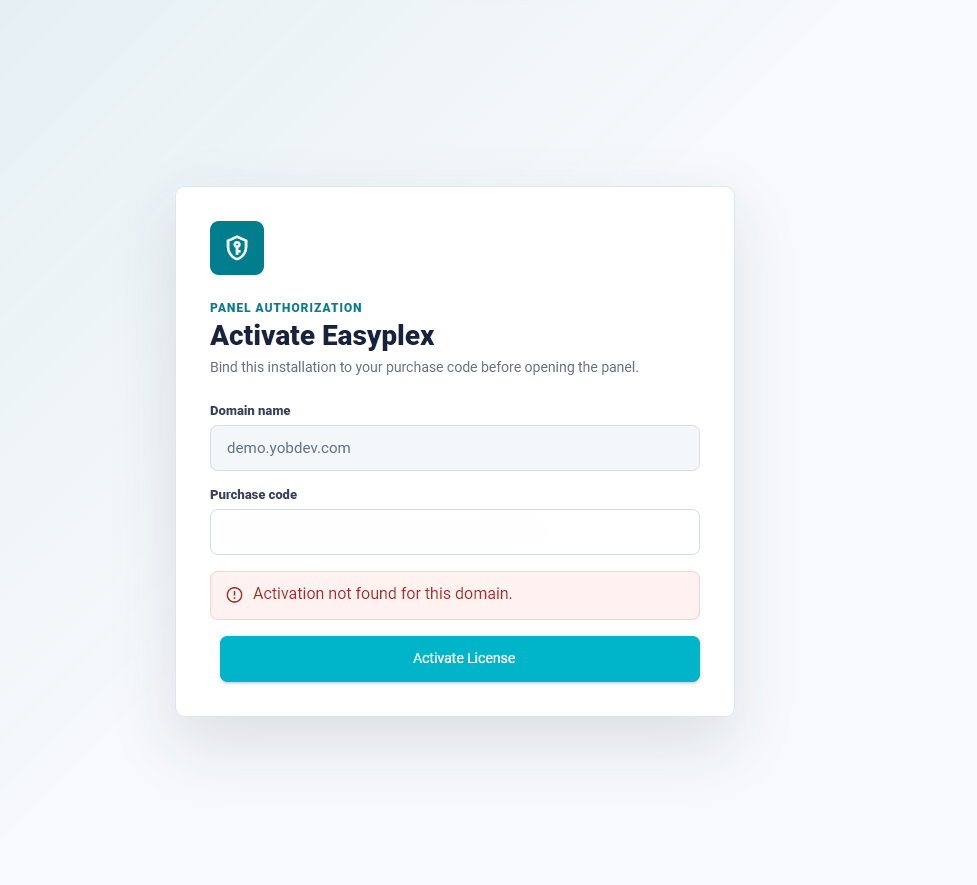
Open your domain. On the Activate Easyplex screen, confirm that the detected domain is correct, enter your own purchase code, and select Activate License. The red “Activation not found” notice is expected before a new domain has been activated.
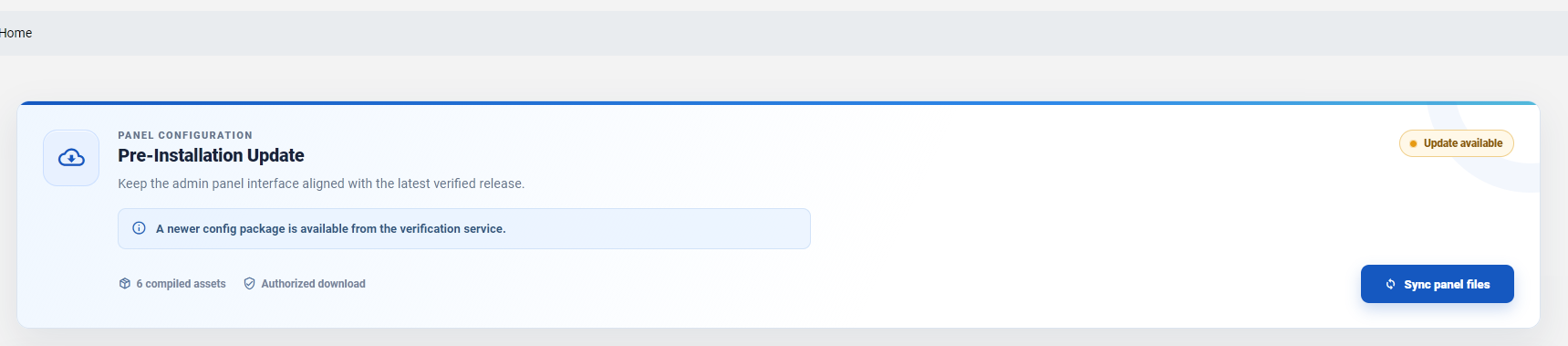
After activation, EasyPlex may show the Pre-Installation Update page. When the status says an update is available and the download is authorized, select Sync panel files. Keep the page open until synchronization finishes; do not refresh the browser or interrupt PHP during this operation.
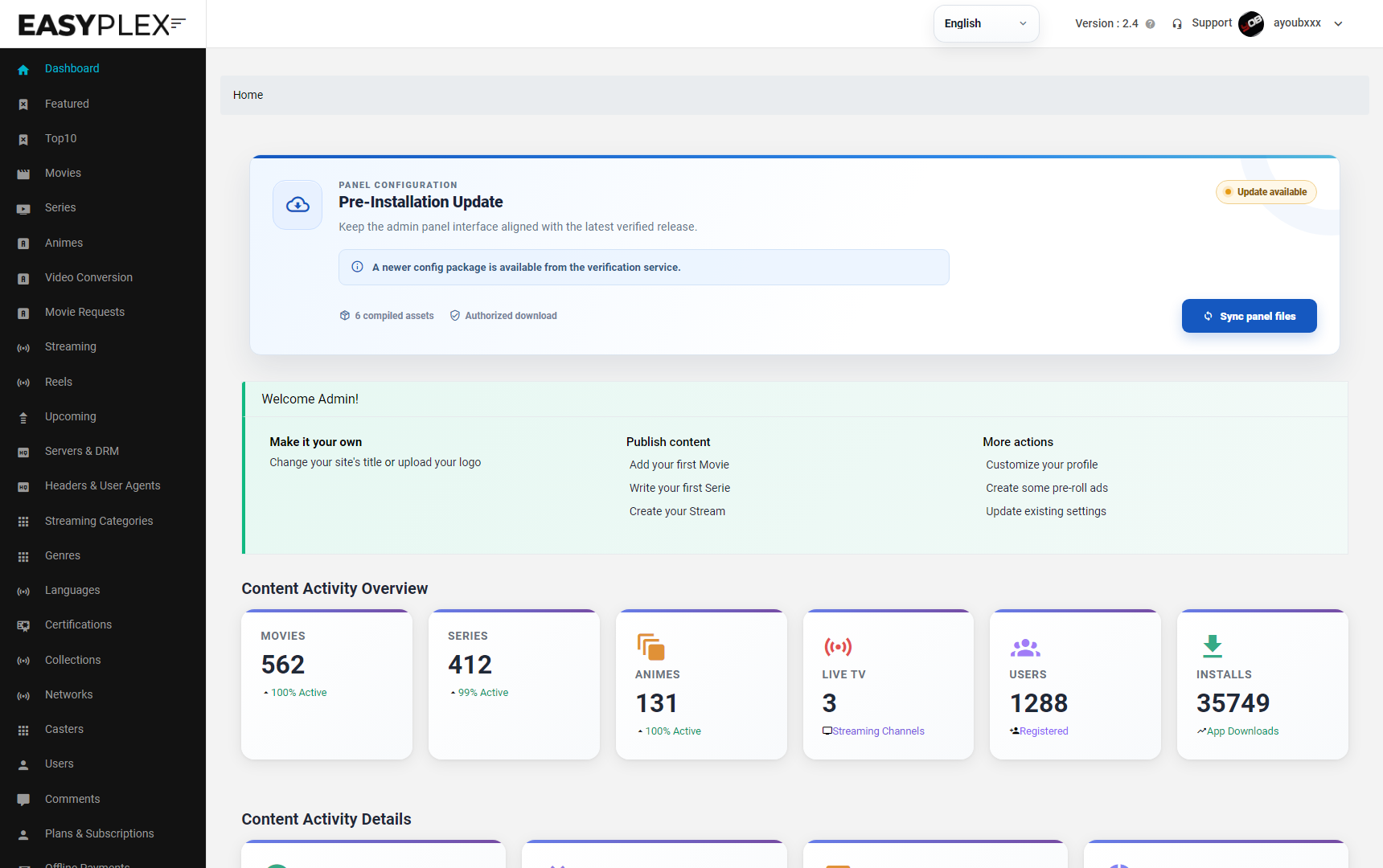
When the dashboard opens, sign in to the administrator account, immediately replace the seeded password, and then work through the settings checklist below.
First login · seeded database
These accounts are created by php artisan db:seed --force and are also present in the supplied EasyPlex 2.4 SQL database. Open https://your-domain.example/login after installation and license activation.
| Account | Temporary password | Purpose | |
|---|---|---|---|
| Administrator | [email protected] | ChangeMe!EasyPlex24 | Initial administration-panel login. |
| Sample mobile user | [email protected] | ChangeMe!EasyPlexUser24 | Temporary application testing account. |
/login and sign in with the administrator row above.Server · existing installation
Upgrade the existing 2.3 database through phpMyAdmin by importing the SQL file included in the update package.
In phpMyAdmin, select the current EasyPlex database, open Export, choose the SQL format, and download a complete backup. Also copy .env, storage/app/public/, uploaded media, OAuth keys, and any customized files. Do not continue until the backup has finished downloading.
Put the website in maintenance mode if available, then upload the 2.4 web-panel files. Preserve the production .env file and uploaded storage—do not replace them with package defaults.
Sign in to phpMyAdmin and select the database used by the existing EasyPlex 2.3 installation from the left sidebar. If you are unsure which one to select, open the panel’s .env file and use the value of DB_DATABASE.
With the correct database selected, open the Import tab, select Choose file, and browse to this file in the EasyPlex 2.4 package:
Keep the format set to SQL. Leave the character set as UTF-8 unless your existing database uses a different known encoding.
Scroll to the bottom of the Import page and select Import or Go. Wait for phpMyAdmin to display a successful import message. Do not close the tab, refresh the page, or import the file a second time while the first request is running.
After a successful SQL import, clear the Laravel cache from the hosting terminal or the panel’s Laravel maintenance tools. If terminal access is available, run:
php artisan runtime:refresh-state
php artisan optimize:clear
php artisan queue:restart
Open the dashboard and verify that settings save correctly. Test authentication, home content, playback, uploads, subscriptions, credits, and scheduled tasks before reopening the application to users.
Control panel
Version 2.4 moves many values that were formerly edited in .env into database-backed admin settings. Save each tab before leaving it; uploads and utility buttons may execute immediately.
Brand assets, policy copy, backups, cache tools, mail driver context, locale, logging, GeoIP, JWT, country rules, device protection, VPN and mobile API hardening.
Firebase or OneSignal credentials, metadata language sources, Google/Facebook OAuth, SMTP transport, sender identity and email templates.
Ad networks, playback and subtitles, downloads, RTL, episode card style, drag-and-drop home sections, release notes and forced/optional app updates.
Binary diagnostics, video quality profiles, unlock policies, gateways, offline instructions, storage disks and framework/provider values.
Storage · EasyPlex 2.4.20
EasyPlex can use one Cloudflare R2 bucket as the primary destination for panel-managed images, normal movie/series/anime video uploads, and enhanced FFmpeg output. Laravel writes through R2's S3-compatible API; the Android app receives public HTTPS object URLs and never receives the R2 secret key.
In Cloudflare Dashboard, open R2 object storage, create a bucket, and choose a permanent name such as easyplex-media. Copy the name exactly; it becomes the panel's R2 bucket value.
Open Manage R2 API Tokens and create credentials with Object Read & Write access restricted to this bucket. Save the generated Access Key ID and Secret Access Key immediately. Do not use a global Cloudflare API key or place these credentials in Android, JavaScript, source control, or documentation.
Copy the S3 API endpoint shown by Cloudflare. EasyPlex expects this format:
https://<ACCOUNT_ID>.r2.cloudflarestorage.comDo not use the public custom domain here and do not append the bucket name.
Open the bucket's Settings page and connect a custom domain such as media.example.com. Use https://media.example.com as the panel's R2 public URL. Cloudflare's r2.dev public development URL can be used for testing, but it is rate-limited and is not recommended for production delivery.
Open Admin → Settings → Storage, enable Cloudflare R2 Storage, and complete every R2 field. Selecting R2 disables AWS S3 and Wasabi because only one primary cloud provider can be active.
| EasyPlex field | Cloudflare value | Example |
|---|---|---|
| R2 access key ID | Access Key ID from the scoped R2 API token | your-access-key-id |
| R2 secret access key | Secret Access Key shown once when the token is created | keep-this-private |
| R2 bucket | Exact bucket name | easyplex-media |
| R2 S3 endpoint | Account-level S3 API endpoint | https://ACCOUNT_ID.r2.cloudflarestorage.com |
| R2 public URL | Public custom domain or development r2.dev URL | https://media.example.com |
Select Save Settings, then run:
php artisan optimize:clear
php artisan queue:restart
Queue workers must have outbound HTTPS access to the R2 endpoint. Enhanced video conversion also requires the normal EasyPlex FFmpeg worker configuration.
Upload one artwork image, one normal video file, and one enhanced video. Confirm the saved URLs begin with the configured R2 public URL, play over HTTPS, and appear under EasyPlex-managed prefixes such as images/, movies/, series/, or animes/. Delete a test managed video link and confirm its object is removed. Buyer-supplied external URLs are intentionally never deleted.
| Problem | Likely cause | Fix |
|---|---|---|
403 Forbidden or PutObject denied | Wrong bucket, endpoint, token scope, Access Key ID, or secret | Use the account-level endpoint, exact bucket name, and a bucket-scoped Object Read & Write token. Rotate exposed credentials. |
cURL error 60 | The server cannot validate Cloudflare's TLS certificate chain | Update the operating-system/PHP CA bundle or place a current cacert.pem in the Laravel project root. Never disable TLS verification. |
| Saved URL still uses the panel domain | Old compiled config/backend files, missing R2 migration, or stale workers | Install the complete signed EasyPlex 2.4.20 panel update, run migrations, clear caches, and restart queue workers. |
| Enhanced upload stays near 55% | The FFmpeg queue worker is stopped, listening to the wrong queue, or cannot reach R2 | Check Supervisor/systemd, the configured queue name, failed jobs, and storage/logs/laravel.log. Follow the queue-worker guide. |
| Browser playback reports CORS errors | The public R2 hostname does not allow the website origin | Add a bucket CORS policy for the exact HTTPS website origin and required GET/HEAD methods, then purge cached responses. Server-side panel uploads and native Android requests do not require browser CORS. |
Cloudflare R2 S3 setup guide · R2 API token guide · Public bucket and custom-domain guide · R2 CORS guide
Control panel · visual tour
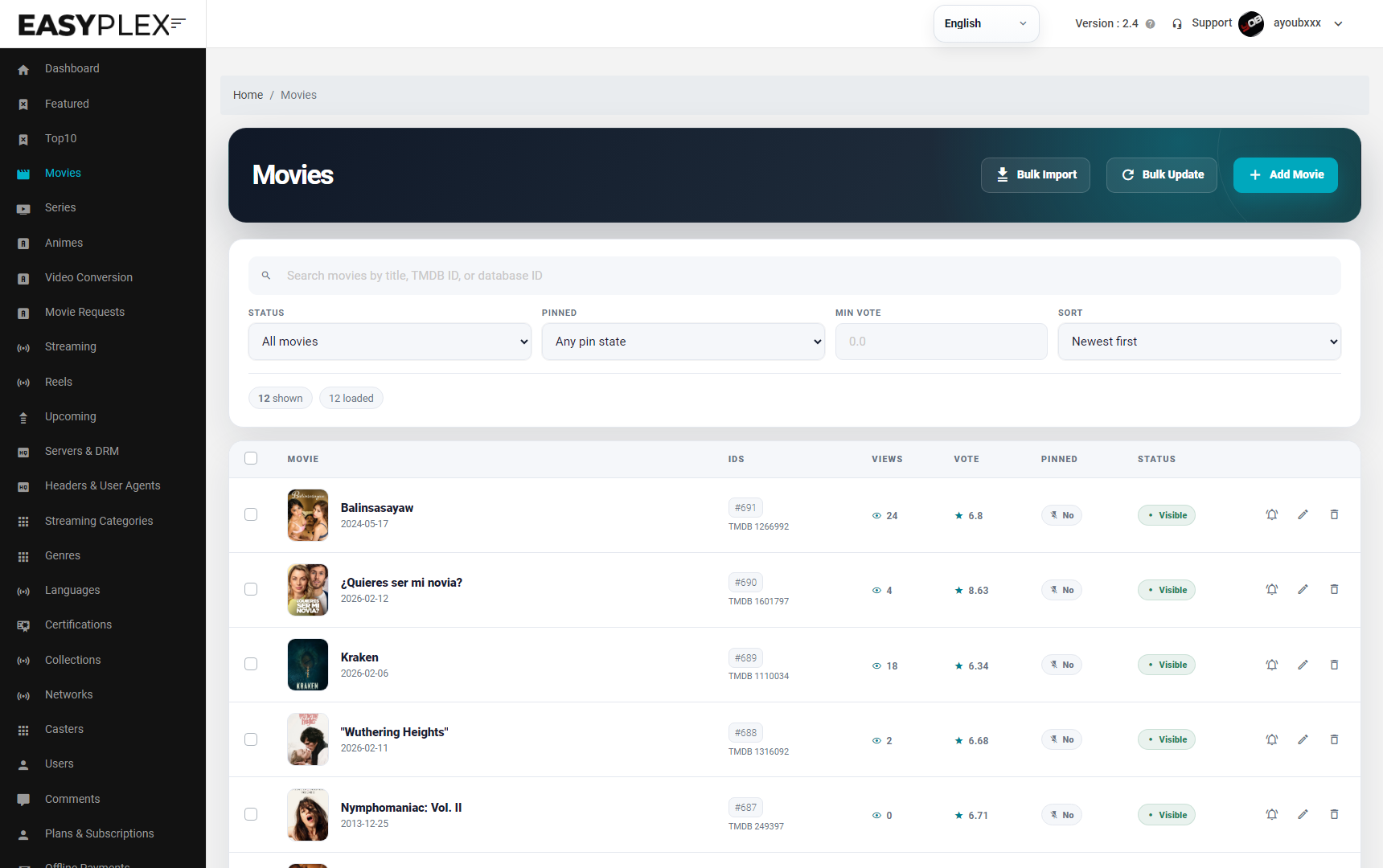
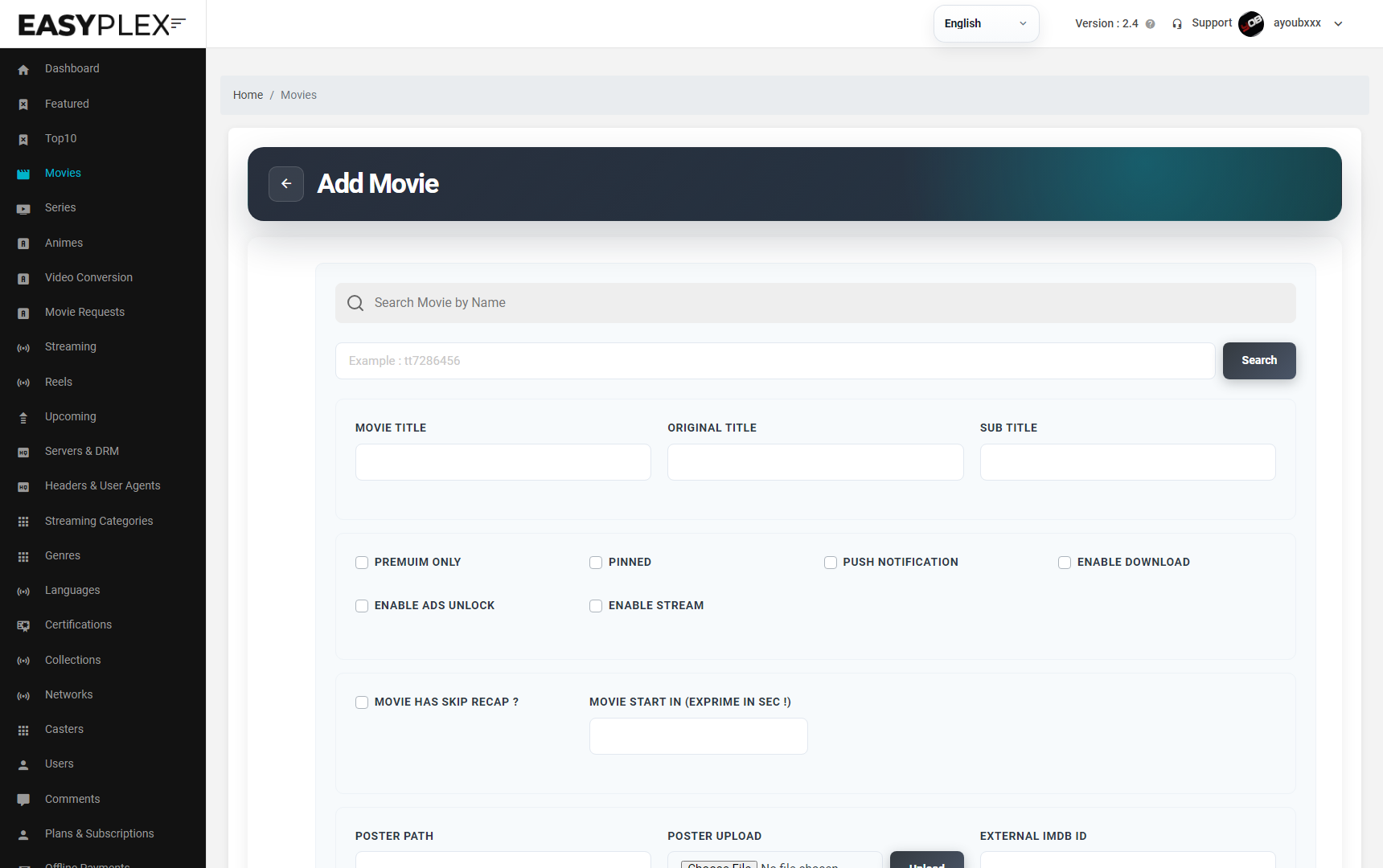
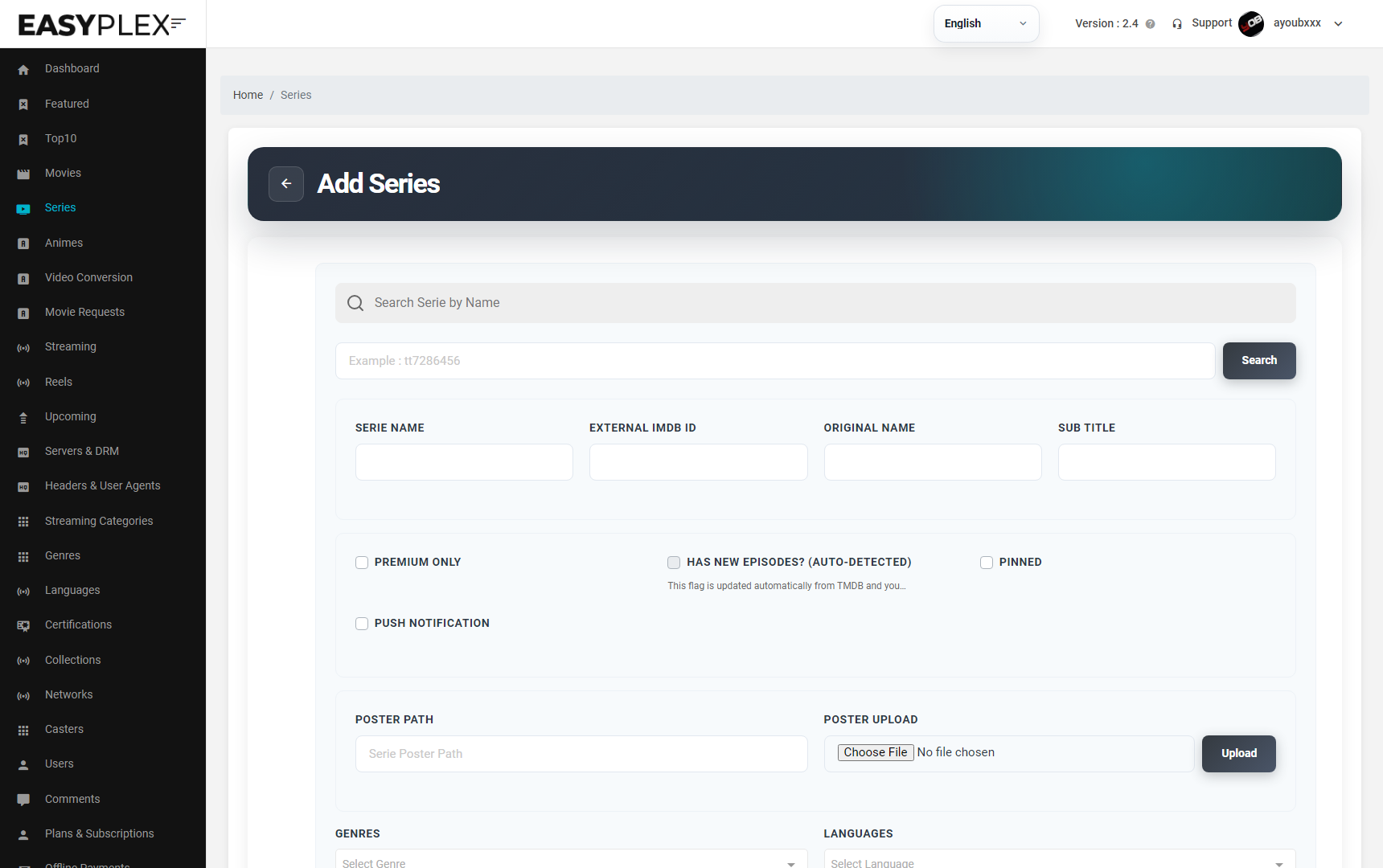
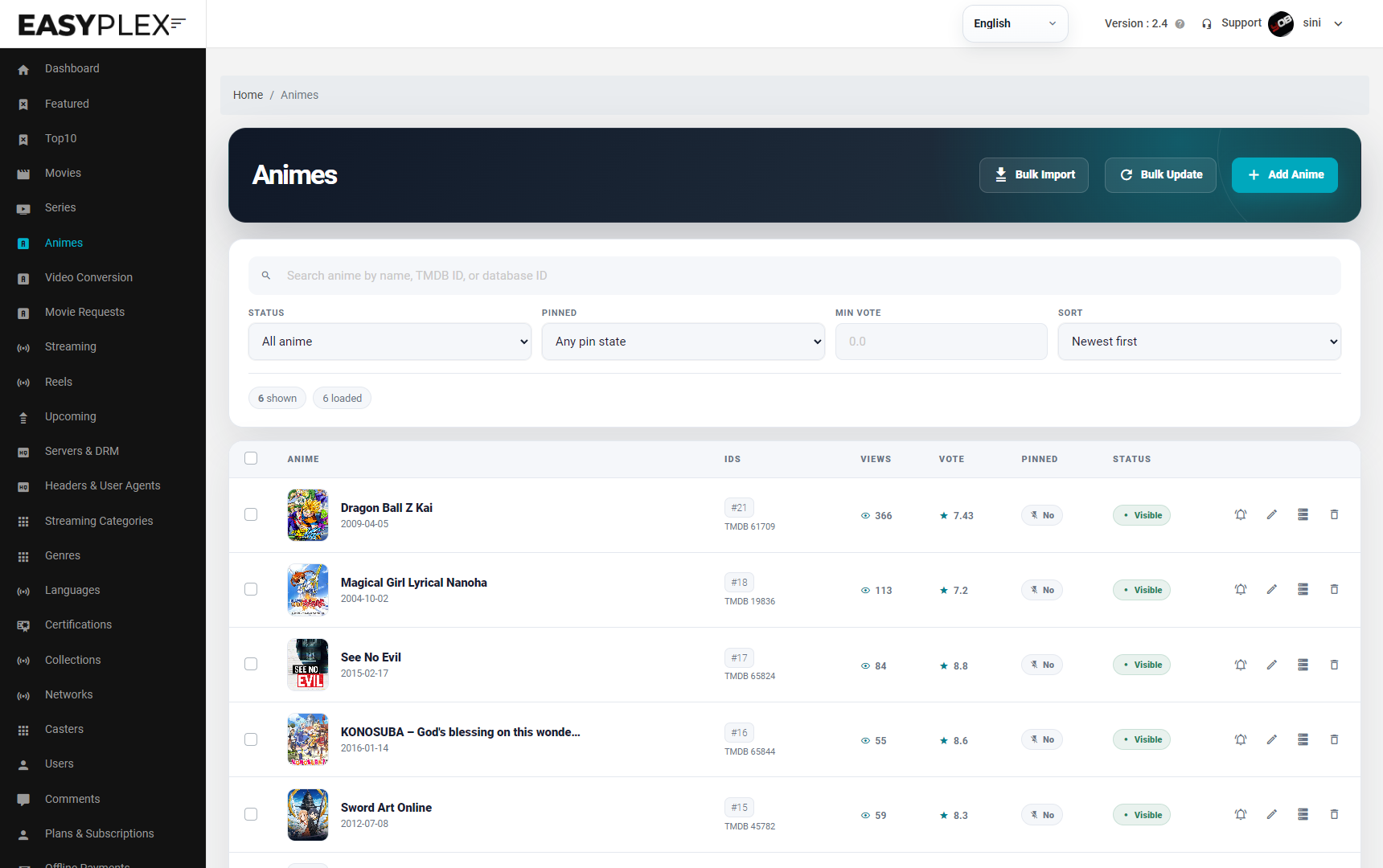
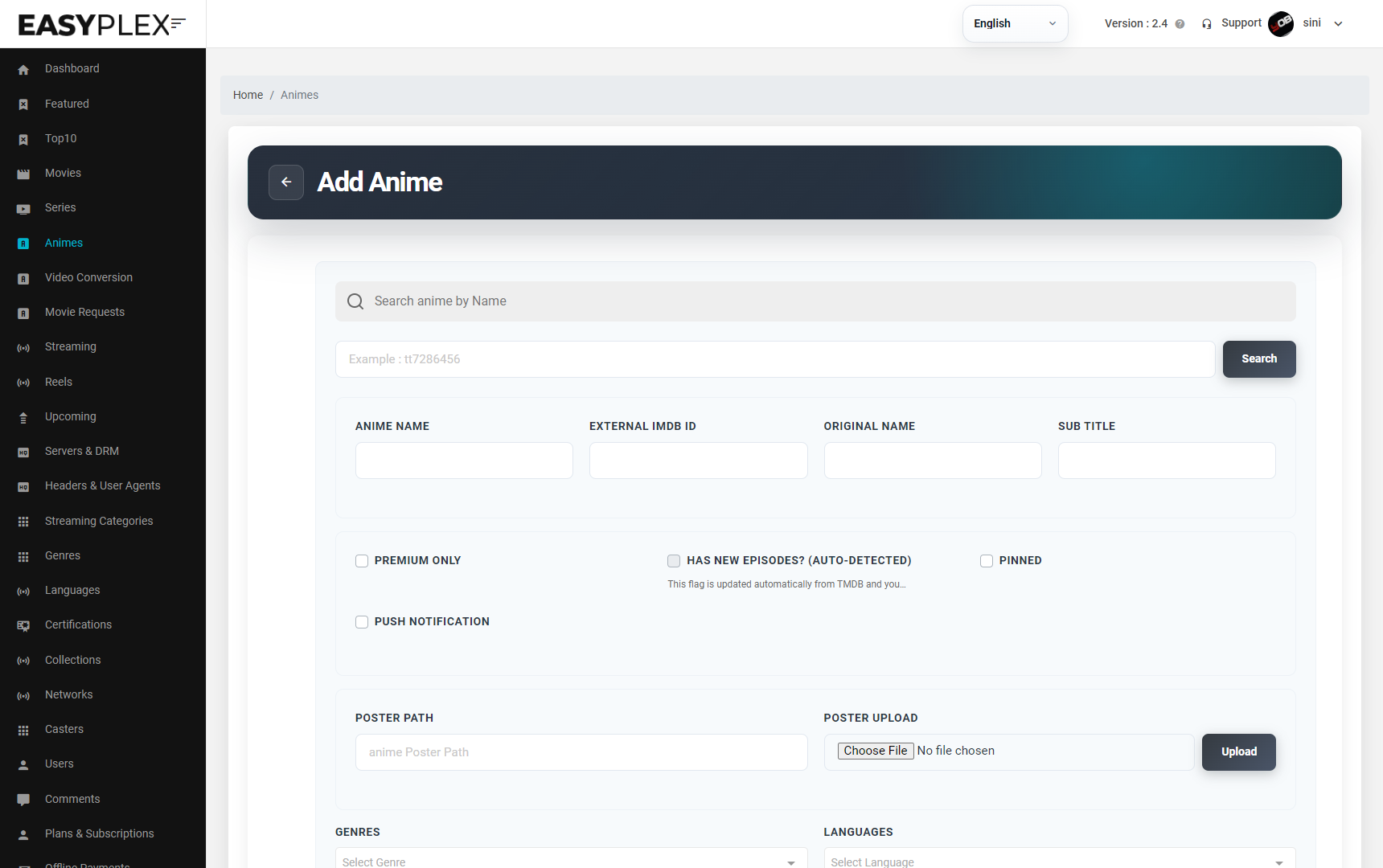
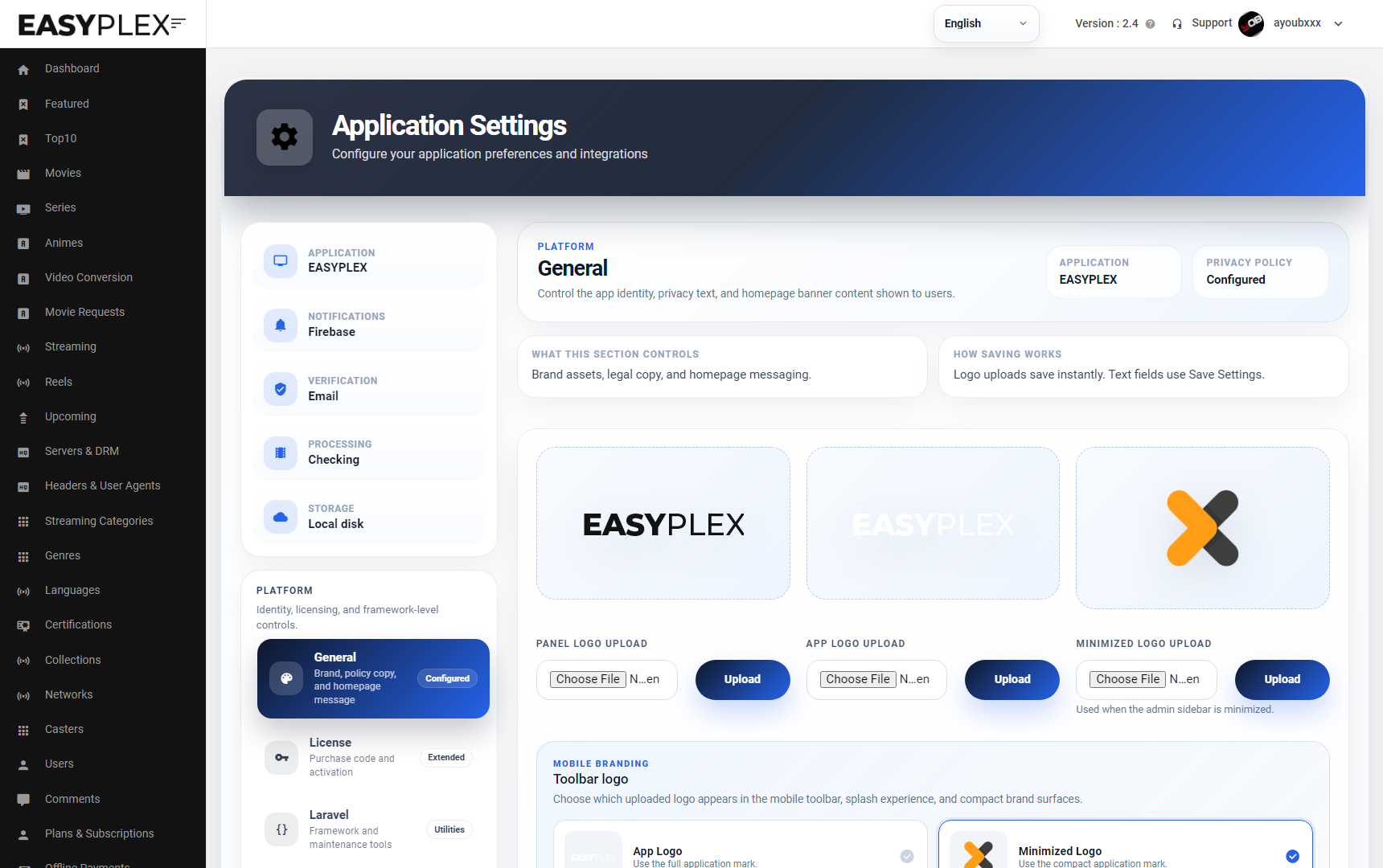
The left navigation opens the catalog and settings workspaces. These screens are browser-based; routine content and layout changes do not require Android Studio or a terminal. The complete movie and series walkthrough immediately below follows the same current 2.4 forms shown here.
Catalog · complete no-code workflow
This entire workflow is completed inside the EasyPlex administration panel. You do not edit Android source, open Android Studio, run Composer/npm, or use a terminal. After you save and activate content, the supplied Android app reads it through the existing API automatically.
Use this path when one catalog record points directly to one or more playable movie sources.
Sign in as an administrator, select Movies in the left menu, then select Add Movie. The page title must read “Add Movie”.
Use Search Movie by Name, or enter an IMDb identifier such as tt7286456 and select Search. Choose the correct result. If you are entering everything manually, continue to the fields below.
Confirm Movie Title, Original Title, optional subtitle, external IMDb ID, poster, mobile backdrop, and Android TV backdrop. A URL can be used where supported, or select a local image and press its adjacent Upload button.
Select genres, languages, networks/collections when applicable, certification, cast, trailer, details/overview, release date, vote average, popularity, and runtime. Imported data is a starting point—review it before publishing.
Set Premium Only, Pinned, Push Notification, Enable Download, Enable Ads Unlock, and Enable Stream intentionally. Configure skip-recap timing only when the video contains a recap and the value is expressed in seconds.
In Video Management → Manual Links, select the server, quality, language, optional header/user agent, and paste the licensed media URL. Mark HLS only for an HLS playlist; enable DRM only with the provider’s UUID and license URI. Set Premium/Active, then select Add Video Link. Alternatively use the panel’s upload or generated-video tabs.
Add a download URL only when offline delivery is permitted. In Subtitle Management, provide the subtitle path or upload, choose the correct language and type, then select Add Subtitle. Repeat for each track.
Select the final Save button. Return to the Movies table, confirm the record is active, open its public details page, and test playback with the same account type—free, premium, or credits—that buyers will use.
A series is a hierarchy. Save the parent first, then manage seasons and episodes before testing playback.
Select Series in the left menu, then Add Series. Confirm the page title reads “Add Series”. Search by series name or enter its IMDb ID and select Search; manual entry is also supported.
Confirm Series Name, external IMDb ID, original name, subtitle, poster, mobile/TV backdrops, genres, languages, networks, certification, cast, trailer, details, first-air/release date, rating, and other imported values.
Choose Premium Only, Active, Pinned, and Push Notification deliberately. The “Has new episodes” state is auto-detected from TMDB and local season/episode data; do not use it as a substitute for adding episodes.
Select Save, return to the Series table, and open Edit for the new record. The saved parent now exposes the complete Seasons & Episodes workspace.
In Seasons & Episodes, enter the season number and import it from TMDB, or create it manually with its number, name, overview, air date, and artwork. Save the season and select it in the season rail.
Import the selected season’s episodes or add them manually. For each episode confirm its episode number, title/name, overview, air date, runtime, still image, rating, and access/active settings. Episode numbers must be unique within that season.
Select an episode, open Episode Video Management, and add its server, quality, language, optional header/user agent, URL or upload, HLS/DRM flags, premium state, and active state. Select Add Video Link. Repeat for every episode that should play.
Where licensed, add download links and subtitle tracks to the selected episode, using the correct language and subtitle type. Confirm that each attachment belongs to the episode currently selected—not only to the parent series.
Save episode changes, then save the series. Confirm the parent series, intended seasons, episodes, and at least one video source per published episode are active.
Open the series in the Android app and verify season switching, episode order, playback, subtitles, premium/credit access, progress, and next-episode behavior. Correct panel data and refresh the app; no Android rebuild is required.
Branding · visual checklist
app/src/main/res/values/colors.xml, replace launcher/splash assets with Android Studio’s asset tools, rebuild, and check contrast in light/dark and RTL layouts.Android · current 2.4 interface
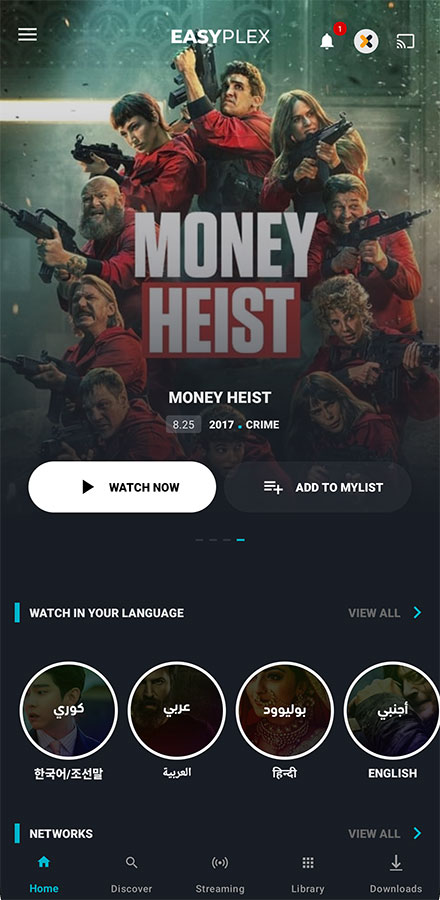
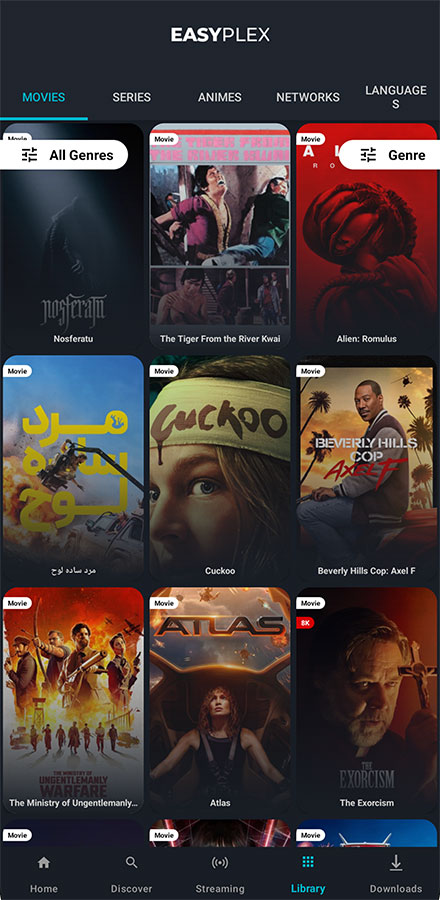
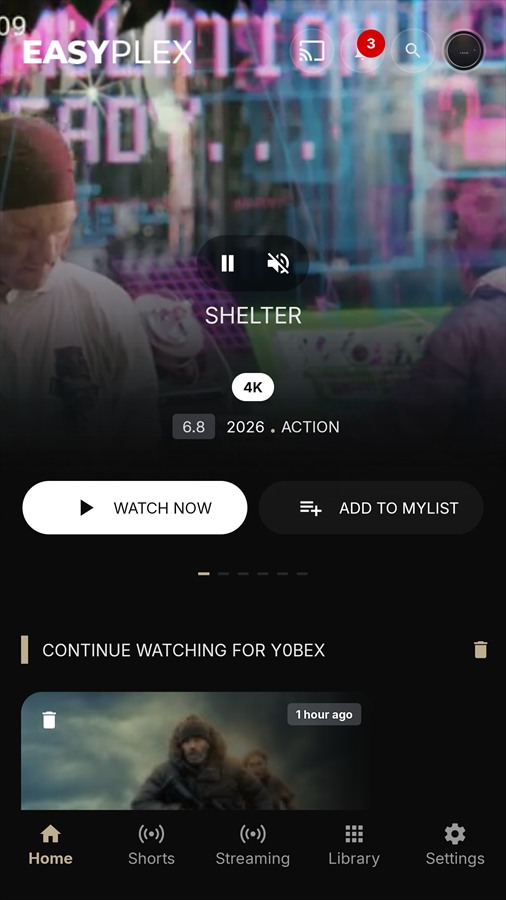
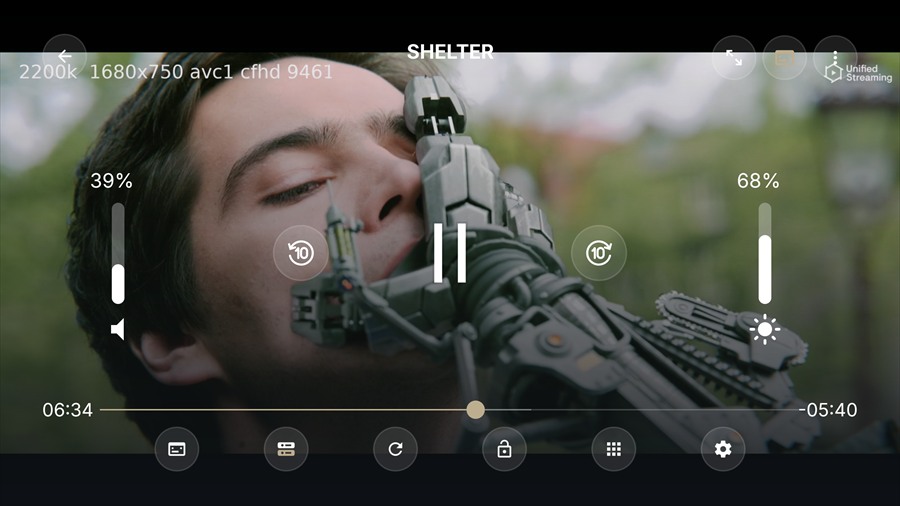
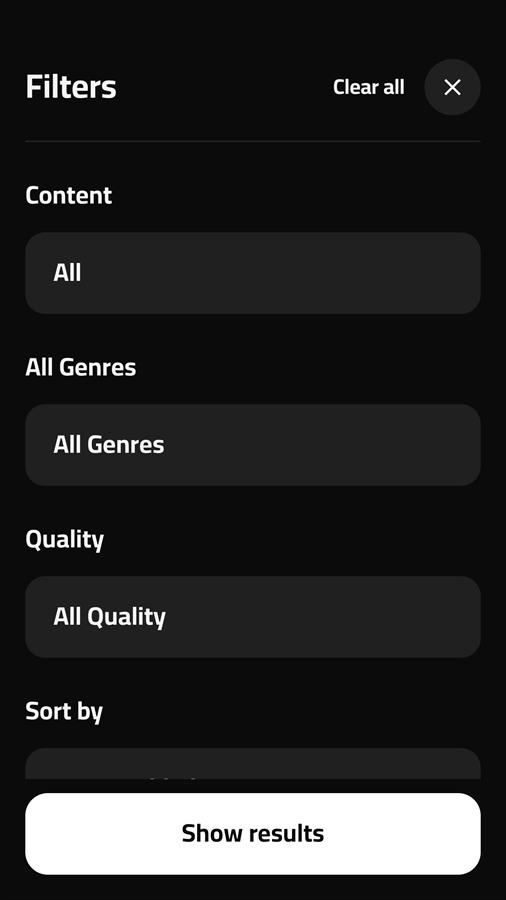
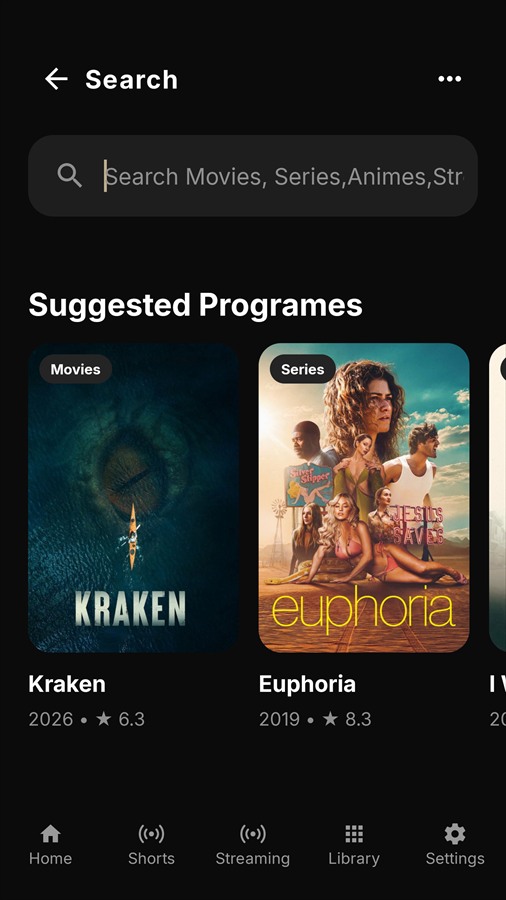
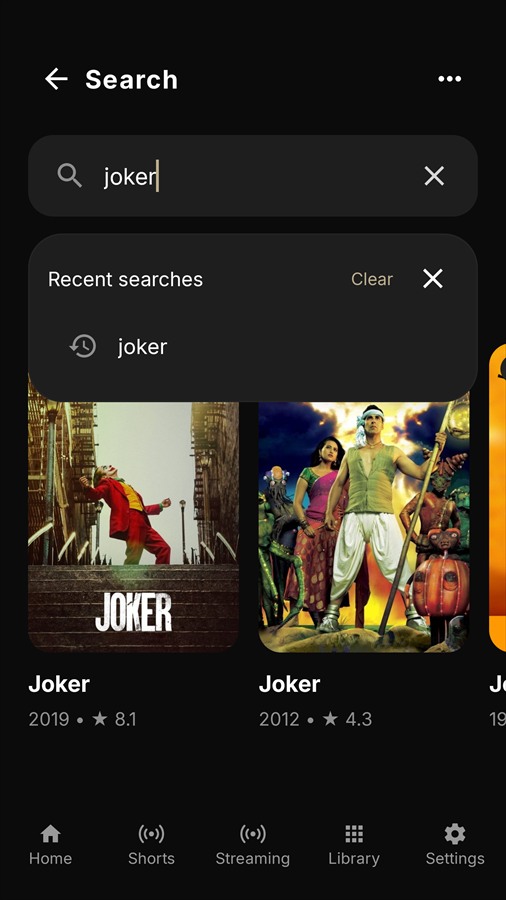
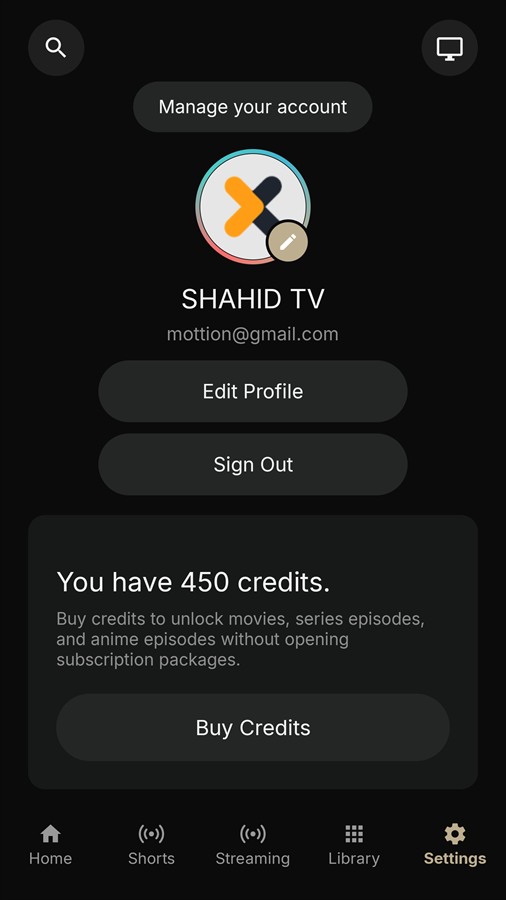
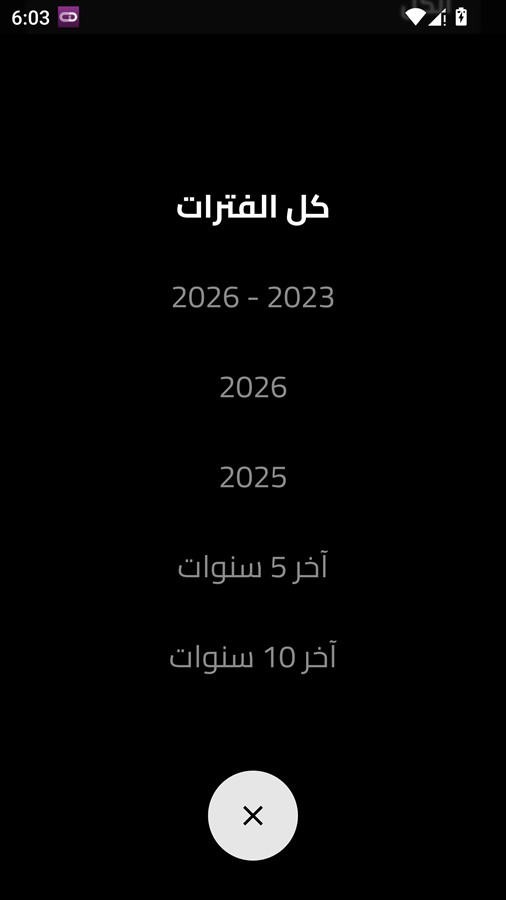
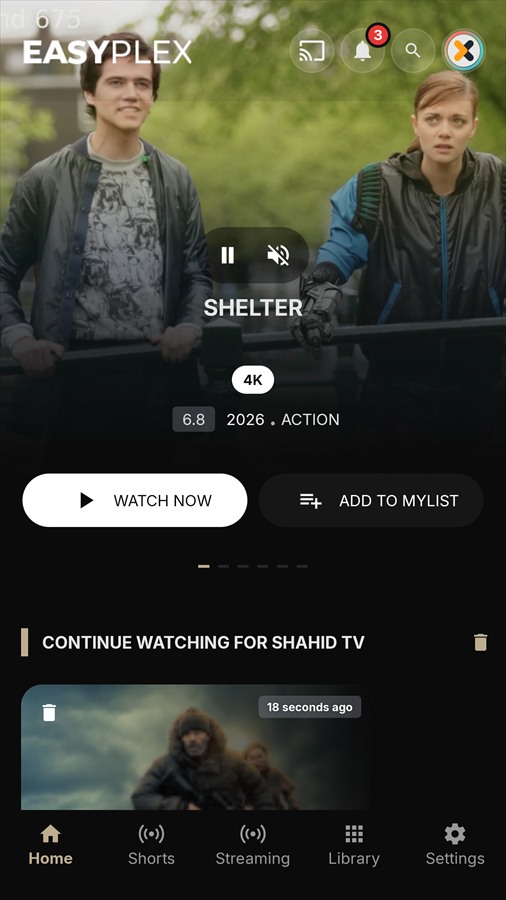
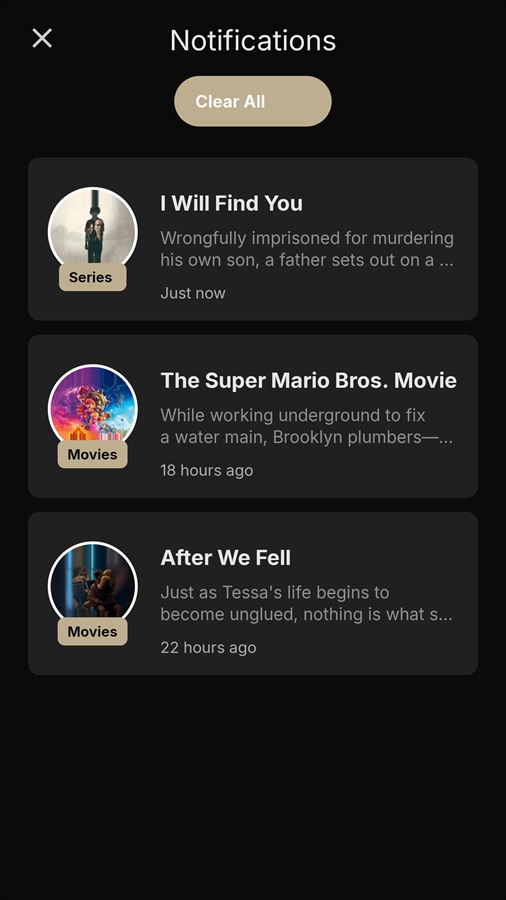
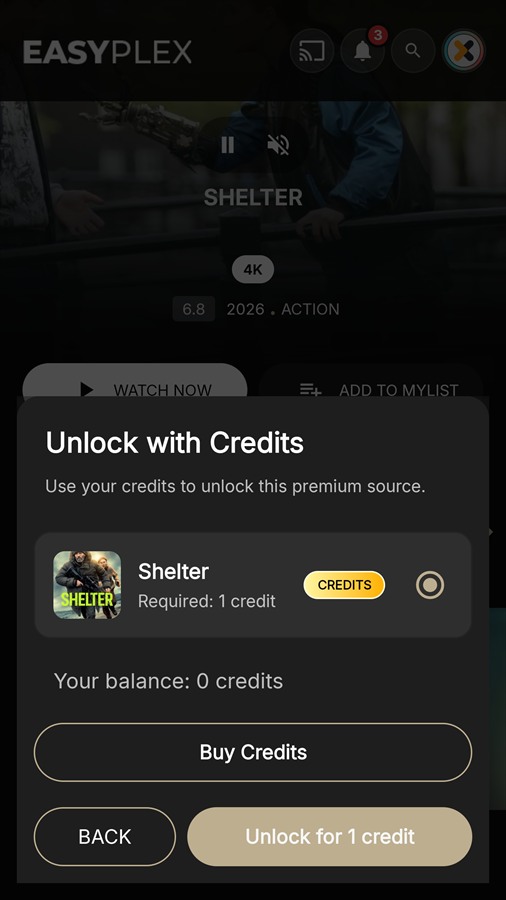
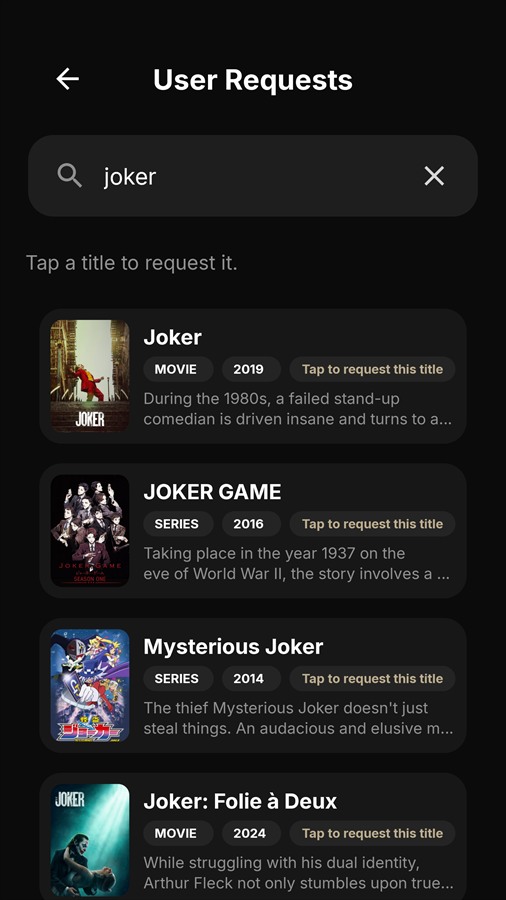
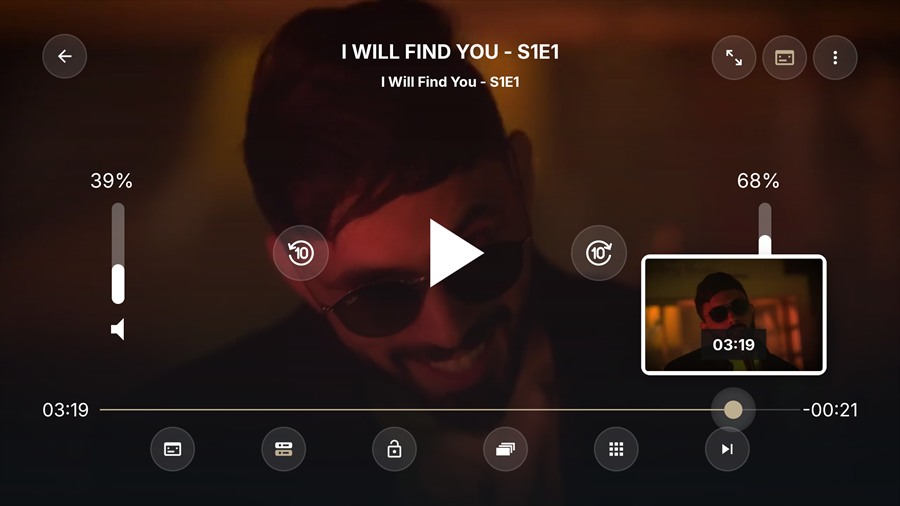
These screenshots come from the current EasyPlex 2.4 Android build. They show the latest home, discovery, search, profile, credit, notification, request, RTL, and AndroidX Media3 playback interfaces. Visible rails and actions still depend on the settings enabled in the administration panel.
Android · project
In Android Studio choose Open and select the folder containing settings.gradle—not the nested app/ folder. Let Gradle sync finish before changing identifiers.
Change namespace and applicationId in app/build.gradle, then refactor the Java package currently under com.easyplexdemoapp. Update the package in Firebase, OAuth, Facebook, deep-link and store configurations at the same time.
Update versionCode for every store release and set the public versionName. Change the app label in app/src/main/res/values/strings.xml, then replace launcher icons through Android Studio’s Image Asset tool.
Set the Gradle runtime to JDK 17, install Android SDK Platform 36 and current Build Tools, then sync. The source compiles with Java 11 compatibility, and the app supports Android 7.0 (API 24) and newer.
Android · configuration
The backend Security tab generates the matching values. Copy its “Mobile gradle.properties lines” into the Android project’s root gradle.properties.
SERVER_BASE_URL=https://stream.example.com/api/
APP_ACCESS_PASSWORD_SHA256=
MOBILE_APP_ID=easyplex-mobile
MOBILE_APP_HMAC_SECRET=generated-long-secret
MOBILE_RESPONSE_ENCRYPTION_SECRET=separate-generated-secret
MOBILE_CERTIFICATE_PINS=sha256/BASE64_PIN
MOBILE_SIGNED_REQUESTS_ENABLED=true
MOBILE_PLAY_INTEGRITY_ENABLED=false
MOBILE_API_KEY=copy-from-admin-api-settings
PURCHASE_KEY=your-envato-purchase-code
APPLOVIN_SDK_KEY=
FACEBOOK_CLIENT_TOKEN=| Property | Purpose | Important rule |
|---|---|---|
SERVER_BASE_URL | Retrofit/API and hosted asset base | Production HTTPS; include /api/ and trailing slash. |
MOBILE_APP_ID | Identifies the client | Must exactly match the backend value. |
MOBILE_APP_HMAC_SECRET | Signs method, path, timestamp, nonce and body hash | Generate in the panel; never commit real values. |
MOBILE_RESPONSE_ENCRYPTION_SECRET | Derives per-request AES-256-GCM response keys | Use a different secret from HMAC. |
MOBILE_CERTIFICATE_PINS | Pins production HTTPS certificates | Keep a backup pin before certificate rotation. |
MOBILE_API_KEY | Required bootstrap credential for every backend {code} route | Copy the API key from your panel into uncommitted local.properties, a private Gradle property, or the build environment. It must match the panel value; never edit or commit Constants.java. |
PURCHASE_KEY | Required mobile license binding | Use the same Envato purchase code activated in the web panel. Empty release builds are rejected, and the app will stop at startup if the value is empty or does not match the panel. Keep it in uncommitted local.properties or the private build environment. |
Android · services
EasyPlex supports direct Firebase delivery or OneSignal backed by Firebase Cloud Messaging. Configure only one provider as the panel default, but keep the Android Firebase project and google-services.json aligned with the final package name in either case.
google-services.json and place it in app/google-services.json.# Debug key (Windows)
keytool -list -v -alias androiddebugkey -keystore "%USERPROFILE%\.android\debug.keystore" -storepass android -keypass android
# Release key
keytool -list -v -alias YOUR_ALIAS -keystore YOUR_RELEASE_KEYSTORE.jksAndroid · identity
The manifest handles HTTPS paths for:
Host a valid /.well-known/assetlinks.json on the same domain used by SERVER_BASE_URL. It must contain the final package name and SHA-256 certificate fingerprint. App links do not verify on plain HTTP or an IP address.
Enter provider client IDs/secrets in Admin → Settings → Social Login. Register the final Android package and signing hashes with each provider. For Facebook, set the app ID and URL scheme in the manifest/resources and supply FACEBOOK_CLIENT_TOKEN through Gradle properties.
Test debug and release signing independently; their key hashes differ.
Android · release
gradlew.bat clean test
gradlew.bat lintRelease
gradlew.bat bundleRelease
# Or create an APK:
gradlew.bat assembleReleaseapplicationId, increment versionCode, and align the panel’s Updates version with the APK/AAB.ENABLE_16KB_APK_WORKAROUND=true; the build contains an opt-in 16 KB APK alignment verification flow.Catalog
AAR resolver · URL reference
Use a complete HTTPS watch, embed, or share URL in the format shown. Replace every uppercase placeholder with the real provider value; do not enter only a domain, a dashboard URL, or a shortened URL unless that format appears below.
| Host family recognized by the AAR | Example input format | Panel link options |
|---|---|---|
YouTubeyoutube.com | https://www.youtube.com/watch?v=VIDEO_ID | Supported Hosts: On. Use only videos whose owner permits playback or embedding. |
Vimeovimeo.com | https://vimeo.com/VIDEO_ID | Supported Hosts: On. The owner must allow playback for your use case. |
Dailymotiondailymotion.com | https://www.dailymotion.com/video/VIDEO_ID | Supported Hosts: On. |
Google Drivedrive.google.com | https://drive.google.com/file/d/FILE_ID/view | Supported Hosts: On. The file must be shared with the intended audience. |
Microsoft OneDrive1drv.ms | https://1drv.ms/v/SHARE_ID | Supported Hosts: On. Use the provider's video share link. |
MediaFiremediafire.com | https://www.mediafire.com/file/FILE_ID/FILE_NAME/file | Supported Hosts: On. |
SaveFiles and Streamablesavefiles.com, save-files.com, streamable.com | https://streamable.com/VIDEO_IDhttps://savefiles.com/FILE_ID | Supported Hosts: On. Use a public share/watch URL. |
FileMoon / Bysekozefilemoon.sx, filemoon.to, bysekoze.com | https://filemoon.sx/e/VIDEO_IDhttps://bysekoze.com/e/VIDEO_ID | Supported Hosts: On. |
Yandex Diskdisk.yandex.* or yadi.sk | https://disk.yandex.com/d/SHARE_ID | Supported Hosts: On. The share must be publicly reachable. |
Yandex Video Previewyandex.com/video/preview/ | https://yandex.com/video/preview/VIDEO_ID | Supported Hosts: On. |
StreamTape familystreamtape.*, stape.*, strcloud.* | https://streamtape.com/e/VIDEO_ID/ | Supported Hosts: On. |
DoodStream / PlayMogodood.*, dooood.*, doodstream.*, d0o0d.com, playmogo.com | https://d0o0d.com/e/VIDEO_IDhttps://playmogo.com/e/VIDEO_ID | Supported Hosts: On. Short-lived links are refreshed by the protected resolver when supported. |
UQLoaduqload.vc, uqload.cx | https://uqload.vc/embed-VIDEO_ID.htmlhttps://uqload.vc/e/VIDEO_ID | Supported Hosts: On. |
VUpload / FaselHDvupload.*, faselhd.* | https://vupload.com/VIDEO_ID | Supported Hosts: On. |
Upstreamupstream.* | https://upstream.to/embed-VIDEO_ID.html | Supported Hosts: On. |
StreamSB familysbfast.*, dokanhost.*, sbembed4.*, sbvideo.* | https://sbfast.com/e/VIDEO_ID | Supported Hosts: On. |
LuluStream familylulustream.com, luluvdo.com, lulu.st, luluvid.com | https://luluvdo.com/e/VIDEO_ID | Supported Hosts: On. |
StreamRuby-compatible familystreamruby.com, stmruby.com, minochinos.com, forafile.com | https://stmruby.com/e/VIDEO_ID | Supported Hosts: On. |
Vidara familyvidara.so, vidara.to, vidaraa.cc, mountainpages.cc | https://vidara.so/v/VIDEO_IDhttps://mountainpages.cc/e/VIDEO_ID | Supported Hosts: On. Recognized alternate-domain redirects are followed safely. |
MixDrop familymixdrop.sb, mixdrop.co, mixdrop.ag, mixdrop.to, mixdrop.ps, mixdrop.top | https://mixdrop.ps/e/VIDEO_ID | Supported Hosts: On. |
VidHide / StreamHG familyvidhidevip.com, movearnpre.com, seraphinapl.com, hgcloud.to, audinifer.com, niramirus.com, cybervynx.com, smoothpre.com | https://hgcloud.to/e/VIDEO_IDhttps://smoothpre.com/v/VIDEO_ID | Supported Hosts: On. |
EmbedWish-compatible familyembedwish.com, streamwish.fun, updown.icu, earnvids.xyz, morencius.com | https://streamwish.fun/e/VIDEO_IDhttps://updown.icu/embed-VIDEO_ID.html | Supported Hosts: On. |
VOE alternate-domain familyvoe.sx, tracylocalschool.com | https://voe.sx/e/VIDEO_IDhttps://tracylocalschool.com/e/VIDEO_ID | Supported Hosts: On. Redirects and required playback headers are handled by the protected resolver when available. |
| Additional 2.4.21 resolver families NiikaPlayer, BigWarp, VidGuard aliases, GoodStream, DropLoad, RPMHub, and StreamHLS | https://HOST.example/e/VIDEO_IDhttps://HOST.example/v/VIDEO_ID | Supported Hosts: On. Use the complete provider URL. |
Vidmolyvidmoly.* | https://vidmoly.to/embed-VIDEO_ID.html | Supported Hosts: On. |
Vidozavidoza.* | https://vidoza.net/embed-VIDEO_ID.html | Supported Hosts: On. |
Vidloxvidlox.* | https://vidlox.me/embed-VIDEO_ID.html | Supported Hosts: On. |
MP4Upload / StreamZZmp4upload.*, streamzz.* | https://www.mp4upload.com/embed-VIDEO_ID.html | Supported Hosts: On. |
OK.ruok.ru | https://ok.ru/videoembed/VIDEO_ID | Supported Hosts: On. |
Solidfilessolidfiles.* | https://www.solidfiles.com/v/FILE_ID | Supported Hosts: On. |
Sendvidsendvid.* | https://sendvid.com/VIDEO_ID | Supported Hosts: On. |
Uptobox / Uptostreamuptobox.*, uptostream.* | https://uptostream.com/VIDEO_ID | Supported Hosts: On. Provider/API limitations may apply. |
4shared Video4shared.com/video/ or /web/embed/ | https://www.4shared.com/video/VIDEO_ID/FILE_NAME.html | Supported Hosts: On. |
Fembed / VCDN familyfembed.*, vcdn.* | https://fembed.com/v/VIDEO_ID | Supported Hosts: On. |
FileRIOfilerio.* | https://filerio.in/VIDEO_ID | Supported Hosts: On. |
HXFilehxfile.* | https://hxfile.co/embed-VIDEO_ID.html | Supported Hosts: On. Some configurations require the HXFile API value from panel settings. |
NinjaStreamninjastream.* | https://ninjastream.to/watch/VIDEO_ID | Supported Hosts: On. |
VidSrc / Dzenvidsrc.*, dzen.* | https://vidsrc.example/embed/movie/CONTENT_ID | Supported Hosts: On. This AAR resolver is separate from the optional IMDb/TMDB embed-provider selector in Player Settings. |
Legacy VCDN-style aliasesgdstream, femax20, pocketnow, multiquality, playto1, sbplay, saruch, gavid, kanavid, iplhd, zapurl, dutrag | https://HOST.example/v/VIDEO_IDhttps://HOST.example/f/VIDEO_ID | Supported Hosts: On. These are compatibility aliases and may disappear or change independently. |
.m3u8 playlist. Leave Embed off when the AAR resolver should handle the URL.Manage movies, series/seasons/episodes, anime, live TV, streaming categories, networks, genres, languages, collections, featured items, previews, upcoming titles, Top 10 and reels.
Use Content Control to reorder mobile home rails. Disabled and empty rails remain hidden automatically. Configure Top 10 mode and limits in the same workspace.
In Top 10 → Ranking mode, choose TMDB to follow TMDB's global daily trend order. EasyPlex checks each trending TMDB identifier against active movies, series, and anime already stored in your database and displays only local matches. A valid TMDB API key is required; TMDB account requirements, limits, attribution rules, and terms still apply.
AndroidX Media3 plays buyer-managed HTTPS HLS, DASH and direct media, with subtitles, PiP, auto-play, casting and optional VAST advertising.
Add only media you own or are contractually licensed to distribute: your storage, CDN, encoder output, or a provider that explicitly authorizes your use. Optional provider resolvers and automatic embed integrations are compatibility tools only; they do not supply content or distribution rights. Buyers are solely responsible for provider permission, content rights, geographic restrictions and takedown compliance.
The Android embed player requires HTTPS and keeps normal certificate and hostname validation enabled. VidSrc, MegaEmbed and StreamIMDB can be selected under Admin → Settings → Player → Embed services. Provider availability, advertising, privacy behavior, API shape and terms are controlled by the provider and can change independently of EasyPlex.
For licensed DASH assets, enable DRM on the movie or episode stream and enter the scheme UUID and HTTPS license-server URL supplied by your DRM vendor (for example Widevine). The app passes those values into Media3’s MediaItem.DrmConfiguration. Store manifests and segments on infrastructure you control, confirm CORS/license authorization, and test on a physical release device. ClearKey is suitable for controlled testing, not strong commercial protection.
The streaming area can operate as a managed catalog or M3U playlist manager. Playlist authorization settings protect backend-hosted playlists.
Enable FFmpeg only when its binaries are installed. Use the admin diagnostics, set binary paths, choose quality presets, and keep a queue worker running for processing jobs.
Android · media compatibility
Direct media is not limited to a fixed hostname: the Android app accepts buyer-owned or properly licensed media from any reachable HTTPS origin when the URL returns a supported file or manifest. For HTML watch/embed URLs, use the AAR resolver URL reference above and mark the panel link as Supported Hosts.
| Host or source | Accepted input | Typical EasyPlex use | Important requirements |
|---|---|---|---|
| Your HTTPS server Nginx, Apache, managed hosting | .m3u8, .mpd, .mp4, .webm, .mkv | Movies, episodes, anime, live channels and progressive downloads. | Use a valid public TLS certificate, correct MIME types, byte-range responses for progressive files, and URLs reachable by the viewer's device. |
| CDN or custom media domain Any provider you are authorized to use | Direct HTTPS manifests, segments, or media files | Global delivery, origin protection and scalable playback. | The CDN must preserve query strings, range requests, redirects and content types. Chromecast receivers must also be able to reach the final URL. |
| Amazon S3 and S3-compatible storage AWS S3, Wasabi, Cloudflare R2, DigitalOcean Spaces, MinIO | Public or time-limited direct HTTPS object URLs | Stored video files, HLS/DASH packages, artwork and subtitles. | Use a public/custom delivery domain or valid signed URLs. Do not place secret access keys in Android. Signed links must remain valid for the expected playback session. |
| HLS origin or encoder | .m3u8 master/media playlists and HTTPS segments | Adaptive movies, series, anime and live TV. | All referenced playlists, keys and segments must use reachable HTTPS URLs. Configure CORS when browser playback or cross-origin tooling also consumes the stream. |
| MPEG-DASH / licensed DRM provider | .mpd manifests, optionally with DRM configuration | Adaptive on-demand playback and licensed Widevine workflows. | Enter the DRM scheme UUID and HTTPS license-server URL supplied by your vendor. The license server must authorize the app/device request. |
| YouTube | youtube.com, youtu.be, and youtube-nocookie.com URLs | Trailers, previews, or content the provider permits you to embed. | Playback uses the dedicated YouTube/trusted-embed path and remains subject to YouTube API, embedding, advertising and content terms. EasyPlex does not extract raw YouTube media URLs. |
| Vimeo | vimeo.com and player.vimeo.com HTTPS embeds | Authorized embedded previews or hosted video. | The video owner must allow embedding on the buyer's domain. EasyPlex does not scrape Vimeo pages or bypass privacy controls. |
| Automatic embed providers | VidSrc, MegaEmbed, or StreamIMDB selected in Player Settings | Optional movie and episode embed fallback using IMDb/TMDB identifiers. | No provider account, uptime, media, license, or usage permission is included. Buyers must verify that the selected provider and every title are lawful for their territory and use case and comply with the provider's current terms. |
A media URL should return the manifest or media bytes, not an HTML watch page, advertising redirect, captcha, or JavaScript player. Test the final URL outside an authenticated admin browser before publishing it.
Release builds reject cleartext HTTP and certificate errors. Use a publicly trusted certificate with the full chain installed; never enable trust-all TLS or hostname bypasses.
If your origin requires authorization headers, cookies, IP binding, or signed query parameters, test seeking, quality changes, subtitles, downloads, background playback and casting. Every referenced segment must remain authorized.
Technical compatibility is not distribution permission. Use only content and infrastructure you own or are contractually licensed to distribute, and follow provider terms, geographic restrictions and takedown obligations.
Commerce
| Method | Configuration | Operational requirement |
|---|---|---|
| Stripe | Mode, publishable key, secret key and plan price IDs | Use test credentials first, then replace them with the matching live credentials before launch. |
| PayPal | Mode, client ID, secret and plan IDs | Keep sandbox and live credentials separate and confirm each plan maps to the correct environment. |
| Offline | Payment methods and customer instructions | An administrator reviews and approves submitted payment requests. |
| Credits | Packages, content prices and unlock policy | Choose permanent unlock or charge on every playback; review transaction history. |
Monetization
The app includes integrations for AdMob, Meta Audience Network, Unity Ads, Appodeal, IronSource, AppNext, Vungle, AppLovin and Wortise. Enable only networks whose SDK IDs and placements are configured.
APPLOVIN_SDK_KEY when AppLovin is enabled.Production protection
Security is coordinated between the panel and Android build. A toggle enabled on only one side can make the API unusable.
Release builds reject cleartext traffic. Pin only certificates you control and always deploy a backup pin.
Protected requests sign the exact method, API path, Unix timestamp, random nonce and SHA-256 raw-body hash.
Mobile tokens bind app ID, device ID and session ID. Refresh tokens rotate; reuse can revoke the session.
Optional response envelopes use a per-request derived key and authenticated encryption.
Root, sniffer, screenshot, VPN/proxy and Play Integrity controls can warn or block according to policy.
Allow/block selected countries, cache GeoIP decisions and set global and anomaly API limits.
X-App-Id: easyplex-mobile
X-Timestamp: 1760000000
X-Nonce: random-url-safe-value
X-Signature: sha256=<hex-hmac>
X-Device-Id: stable-install-id
X-Session-Id: mobile-session-id

HTTP_METHOD_UPPERCASE
/api/path
unix_timestamp_seconds
nonce
sha256(raw_request_body)Keep it healthy
php artisan runtime:refresh-state
php artisan optimize:clearphp artisan schedule:list
php artisan schedule:runphp artisan video:cleanup-jobs --dry-run
php artisan video:cleanup-jobsphp artisan subscriptions:sync-statusphp artisan content:sync-new-episodesphp artisan subtitles:setupMonitor storage/logs/laravel.log, queue failures, disk space, database growth, payment reconciliation, FFmpeg jobs and certificate expiry. Take automatic database and media backups and test restoration regularly.
Set QUEUE_CONNECTION=database (or a configured Redis connection) and use one process manager, not both. Replace the example paths, PHP binary, and Linux user with values from your server. The worker user must be able to write to storage/ and bootstrap/cache/. Reload the manager after every deployment and run php artisan queue:restart so workers pick up new code safely.
cd /var/www/easyplex
php artisan migrate --force
php artisan optimize:clear
php artisan queue:work --once --tries=3 --timeout=300
php artisan queue:failed[program:easyplex-worker]
process_name=%(program_name)s_%(process_num)02d
command=/usr/bin/php /var/www/easyplex/artisan queue:work --sleep=3 --tries=3 --timeout=300 --memory=256
directory=/var/www/easyplex
autostart=true
autorestart=true
stopasgroup=true
killasgroup=true
user=www-data
numprocs=1
redirect_stderr=true
stdout_logfile=/var/www/easyplex/storage/logs/worker.log
stdout_logfile_maxbytes=20MB
stdout_logfile_backups=5
stopwaitsecs=360sudo supervisorctl reread
sudo supervisorctl update
sudo supervisorctl start easyplex-worker:*
sudo supervisorctl status easyplex-worker:*
sudo tail -f /var/www/easyplex/storage/logs/worker.log[Unit]
Description=EasyPlex Laravel queue worker
After=network.target mysql.service
[Service]
Type=simple
User=www-data
Group=www-data
WorkingDirectory=/var/www/easyplex
ExecStart=/usr/bin/php artisan queue:work --sleep=3 --tries=3 --timeout=300 --memory=256
Restart=always
RestartSec=5
TimeoutStopSec=360
KillSignal=SIGTERM
[Install]
WantedBy=multi-user.targetsudo systemctl daemon-reload
sudo systemctl enable --now easyplex-worker
sudo systemctl status easyplex-worker
sudo journalctl -u easyplex-worker -f* * * * * cd /var/www/easyplex && /usr/bin/php artisan schedule:run >> /dev/null 2>&1Integration reference
All paths below are relative to https://your-domain.example/api/. Protected routes may require bearer authentication, mobile signing, session headers, integrity state, and encrypted-response handling.
POSTtokens/mobile/generateCreate a mobile access/refresh-token pair and session ID.
POSTtokens/refreshRotate a mobile refresh token.
POSTsecurity/startup-checkEvaluate startup/device security state.
POSTsecurity/integrity/challengeCreate an app-integrity challenge.
GETsettings/{code}Load the mobile application configuration.
GETmedia/homecontent/{code}Load ordered home content.
POSTwatch-history/progressSave profile/device playback progress.
GETwatch-history/continue-watchingRead the current profile’s continue-watching rail.
GETsubscriptions/plansReturn active plans and enabled payment providers.
GETsubscriptions/meReturn authenticated subscription and premium status.
GETreelsReturn the paginated reels feed.
POSTmovie-requests/submitSubmit a title request for an authenticated user.
JSON requests use Content-Type: application/json. When mobile request signing is enabled, calculate X-Signature over the exact method, path, timestamp, nonce, and raw JSON body as described in the Security section. Values below are examples only.
POST /api/tokens/mobile/generate HTTP/1.1
Host: stream.example.com
Content-Type: application/json
Accept: application/json
X-App-Id: easyplex-mobile
X-Timestamp: 1760000000
X-Nonce: 4f3f2448-57a1-4c07-9948-4ef8af6d63c2
X-Signature: sha256=CALCULATED_HEX_HMAC
X-Device-Id: 8fe21e37-8a1c-45f0-9085-b992892f8d07

{
  "app_id": "easyplex-mobile",
  "device_id": "8fe21e37-8a1c-45f0-9085-b992892f8d07",
  "package_name": "com.example.easyplex",
  "platform": "android",
  "timestamp": 1760000000,
  "nonce": "4f3f2448-57a1-4c07-9948-4ef8af6d63c2",
  "signature": "9A63192D838D0A4F4F6E4178419293736D574721E1550D4A25F9945D65C73D8A"
}{
"success": true,
"access_token": "eyJ0eXAiOiJKV1QiLCJhbGciOi...",
"refresh_token": "ROTATING_REFRESH_TOKEN",
"token_type": "Bearer",
"expires_in": 3600,
"refresh_expires_in": 2592000,
"session_id": "b65892dc-474f-45e7-9bec-3280d91ce01f"
}POST /api/watch-history/progress HTTP/1.1
Authorization: Bearer ACCESS_TOKEN
Content-Type: application/json
Accept: application/json
X-App-Id: easyplex-mobile
X-Device-Id: 8fe21e37-8a1c-45f0-9085-b992892f8d07
X-Session-Id: b65892dc-474f-45e7-9bec-3280d91ce01f
X-Timestamp: 1760000030
X-Nonce: 15d99c27-0609-42d1-b4ef-9639be41bd84
X-Signature: sha256=CALCULATED_HEX_HMAC
{
"watchable_type": "App\\Movie",
"watchable_id": 42,
"episode_id": null,
"current_position": 754,
"duration": 6420,
"device_id": "8fe21e37-8a1c-45f0-9085-b992892f8d07",
"profile_id": 3
}{
"success": true,
"message": "Watch progress saved successfully",
"data": {
"id": 91,
"profile_id": 3,
"progress_percentage": 11.74,
"current_position": 754,
"duration": 6420,
"last_watched_at": "2026-07-29T12:30:30.000000Z"
}
}{
"success": false,
"message": "Validation failed",
"errors": {
"device_id": [
"The device id field is required."
]
}
}{
"success": false,
"message": "Authentication failed. Invalid APK signature or request parameters.",
"error_code": "INVALID_SIGNATURE",
"hint": "Check Laravel logs (storage/logs/laravel.log) for detailed error."
}{
"success": false,
"error": {
"code": "SIGNED_REQUEST_REJECTED",
"message": "Unauthorized request."
}
}Diagnostics
Set SERVER_BASE_URL=https://your-domain.example/api/ in the project root gradle.properties. Do not use localhost, a placeholder hostname, or HTTP for release.
Copy a fresh matching HMAC secret and app ID from the panel. Confirm the device clock is correct, no proxy changes the request body/path, each request gets a new nonce, and the server cache supports atomic add. Clear/rebuild the Android app after property changes.
Ensure both sides use the same response-encryption secret, session ID, request nonce and timestamp. Confirm the app asked for encryption and the panel mode is header or always as intended.
Check PHP upload/post limits, writable storage/, the public/storage link, disk configuration, web-server body limits and the generated URL under HTTPS.
Confirm all five R2 fields are complete, the endpoint uses https://ACCOUNT_ID.r2.cloudflarestorage.com, the bucket name is separate, the API token has Object Read & Write access, and the public URL is reachable. Install the complete 2.4.20 signed update, run the R2 migration, clear Laravel caches, and restart queue workers. Follow the Cloudflare R2 setup guide.
Save the correct settings tab, then run php artisan runtime:refresh-state and php artisan optimize:clear. Restart queue workers and fully restart the mobile app. Check response-cache settings.
Match the Firebase package name and Sender ID, replace google-services.json, verify FCM HTTP v1 credentials and the panel’s selected provider, grant Android notification permission, and test on a physical device. For OneSignal, confirm the device appears under Audience → Subscriptions, the App ID matches the same OneSignal app, the API key is app-level and server-side only, and the configured segment name exists. Follow the OneSignal troubleshooting checklist.
Validate https://domain/.well-known/assetlinks.json, the final application ID, release SHA-256 fingerprint, HTTPS certificate and manifest host. Reinstall the app after changing link verification data.
Final pass
Start typing to search this guide.